

Last updated: July 29, 2026
The worst meeting to record is not the one where the AI notes are inaccurate. It is the one where the recording should never have existed.
AI meeting assistants make capture feel harmless. A bot joins. A transcript appears. A summary lands in your inbox. The problem is that a transcript is not just notes. It can include client names, pricing concessions, health details, employee complaints, contract terms, legal strategy, internal conflict, and every careless sentence people say before they realize the meeting is being preserved.
This guide is for freelancers, managers, and small teams deciding when to use AI meeting notes and when to keep the bot out. The tool comparison comes later. The first decision is whether the call should be recorded at all.
Quick Answer
Do not record calls involving sensitive personal data, employment disputes, legal strategy, medical or health details, security incidents, confidential negotiations, investor discussions, whistleblowing, or any participant who objects to recording.
Use a written recap instead when the meeting needs trust more than perfect recall. A human-written recap can capture decisions, owners, deadlines, and open questions without preserving every sentence.
Record only after consent and scope are clear. Before the bot joins, decide who will receive the transcript, whether the recording is shared automatically, how long it will be kept, whether screen capture is enabled, and whether the meeting could move into sensitive territory.
Turn off auto-join for risky calendars. The dangerous setting is not the record button. It is the assistant that automatically joins every meeting with a video link, including client calls, hiring calls, performance reviews, and private 1:1s.
How We Checked This
We checked official documentation on July 29, 2026: Zoom Voice Recorder with AI Companion, Google Meet recording, Google Meet transcripts, Google Workspace explicit consent update, Otter Notetaker settings, Otter privacy and data controls, Fathom Privacy Policy, Fathom Terms, and Fathom’s help pages on recording consent and auto-sharing.
This is not legal advice. Recording and consent rules vary by location and context. The practical rule is stricter: if you cannot explain why recording is necessary, who consented, who gets the file, and when it will be deleted, do not record.
The Calls You Should Never Record
| Meeting type | Why it is risky | Safer alternative |
|---|---|---|
| Legal strategy or dispute calls | The transcript can preserve privileged, sensitive, or adversarial detail in a third-party system. | Manual notes written by the responsible person, reviewed before sharing. |
| HR, performance, hiring, or termination calls | People may discuss protected characteristics, complaints, compensation, or manager judgment. | Structured HR notes in the approved HR system. |
| Medical, therapy, health, or patient-adjacent calls | Health details can trigger compliance obligations and stricter data handling. | Use only approved systems with the required agreement and controls. |
| Client negotiations under NDA | Pricing, product roadmap, trade secrets, and concessions may be captured and auto-shared. | Write a deal recap after the call and ask the client to confirm decisions. |
| Security incidents or breach response | Incident details, vulnerabilities, and response timing should stay in controlled systems. | Incident log in the security system of record. |
| Any call where someone objects | The consent problem is already visible. | Remove the bot and send a written summary after the meeting. |
The point is not that AI meeting tools are bad. The point is that some meetings should leave fewer artifacts, not more.
The Consent Checklist
Before recording, answer these questions in plain language:
- Did every participant know the meeting would be recorded, transcribed, summarized, or captured by an AI assistant?
- Did anyone object or ask for the bot to be removed?
- Who owns the recording and transcript?
- Who receives automatic access after the meeting?
- Can guests, external attendees, or all calendar invitees receive the summary?
- Is screen capture enabled?
- Are meeting chats, captions, or transcripts saved separately?
- Can collaborators reshare the recording?
- How long will the recording be kept?
- What happens if the meeting turns sensitive halfway through?
If the answer to any of these is “not sure,” the default should be no recording.
What The Tools Actually Capture Or Share
Google Meet shows why the details matter. Google’s help page says participants get notified when recording starts or stops. Recordings include the active speaker and anything presented, and captions can be saved. Google also says that when meetings are recorded and continuous meeting chat is off, Meet saves the chat conversation log. The recording is saved to the organizer’s Drive, emailed to the organizer and person who started recording, and may be added to the Calendar event.
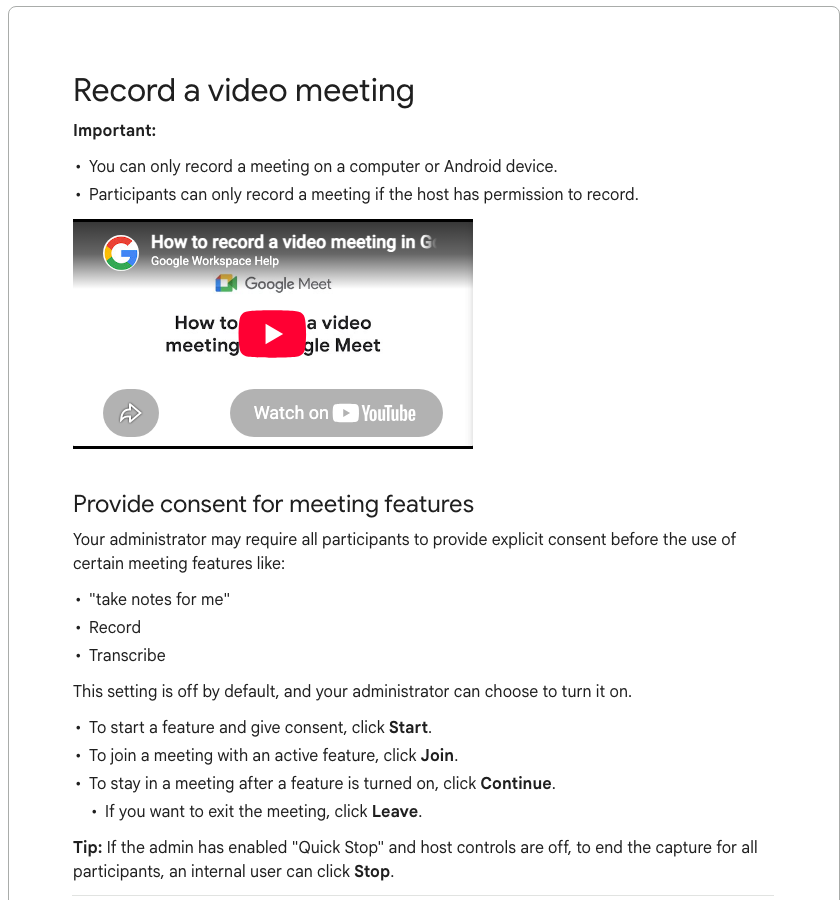
Transcripts have their own access rules. Google says Meet transcripts are saved in the organizer’s Drive, and an automated email goes to the host, co-hosts, and person who turned on transcripts. It also says all invitees in the host’s organization can open the transcript attachment, except that meetings with more than 200 internal invitees are limited to the host, co-hosts, and transcript starter.
Otter’s risk is often configuration, not transcription quality. Otter Notetaker settings can control attendance, auto-share, permissions, auto-join, chat messages, pre-recording emails, and screen capture. Its auto-share settings include All event guests, Same domain guests, Workspace members, and Don’t Share. “Don’t Share” keeps notes private until manually shared.
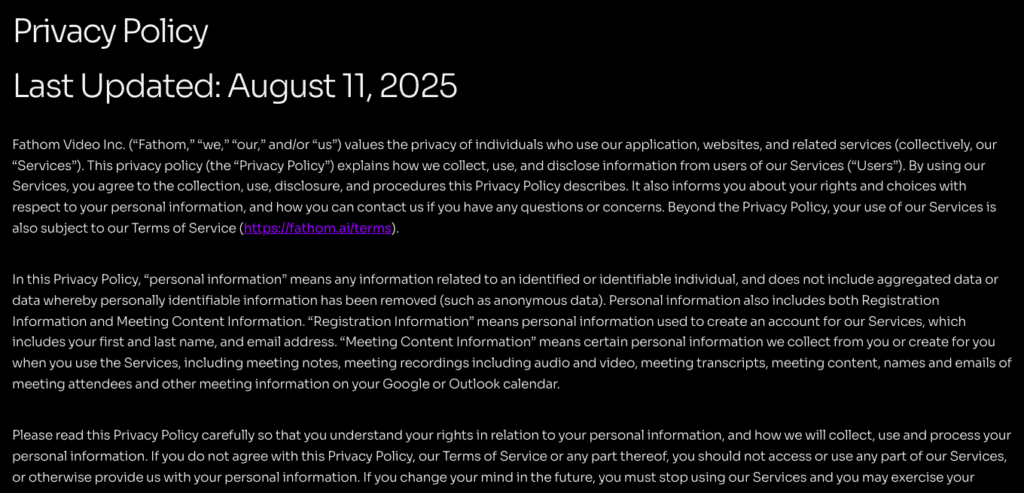
Fathom’s privacy policy is explicit that Meeting Content Information includes meeting notes, recordings, audio and video, transcripts, meeting content, attendee names and emails, and calendar meeting information. It also says some states or countries require all parties to consent before recording, and users should make sure they have the necessary permissions and consents. Fathom’s help pages also say there is no way to silently record and that participants are notified through visible mechanisms.
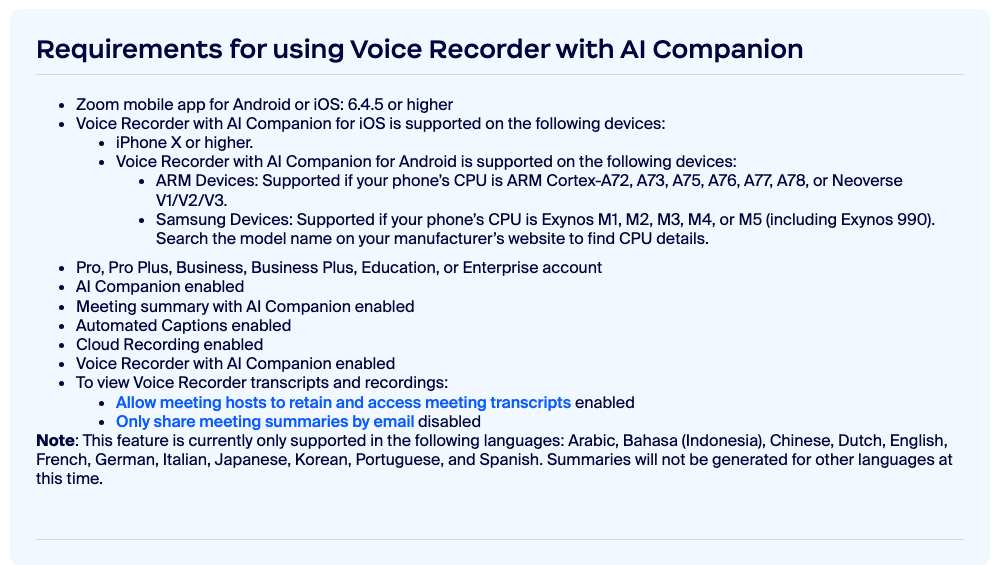
Zoom’s Voice Recorder with AI Companion records, transcribes, and summarizes in-person conversations. Zoom’s support page says users should follow applicable laws before monitoring or recording conversations, and that the first recording flow shows a verification dialog with onboarding instructions.
Scenario 1: Freelancer Client Call Under NDA
A freelancer is discussing a new project with a client. The call will cover budget, launch timing, contractor availability, and a product feature that has not been announced.
Do not auto-record this meeting by default. The safer workflow is to ask before the call whether the client is comfortable with AI notes. If the client says no, remove the bot and take manual notes. If the client says yes, narrow the capture: no screen capture unless needed, no automatic sharing to every calendar guest, and no collaborator reshare permission unless there is a clear business reason.
The recap should not be a raw transcript. Send a clean written summary: decisions, deadlines, responsible owners, and open questions. Do not include the client’s offhand comments, internal speculation, or negotiation tactics.
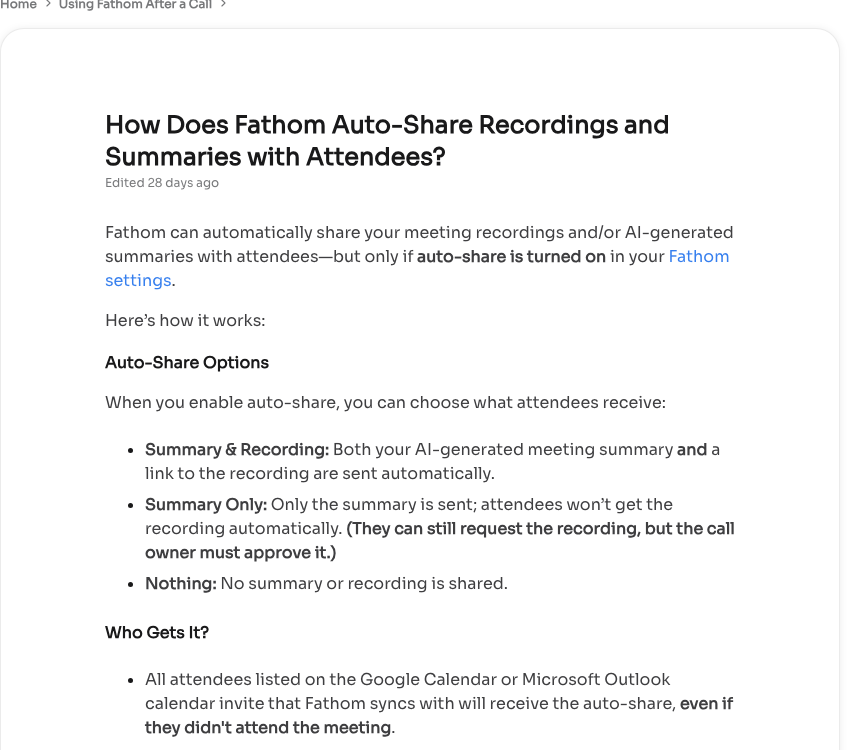
If the client later asks for the recording, check the sharing settings before sending it. Fathom’s auto-share documentation warns that auto-share can send recordings or summaries to calendar attendees, and that there is no “unsend” feature for a recording once shared, although access can be revoked. That is enough reason to avoid broad automatic sharing on confidential calls.
Scenario 2: Manager 1:1 That Turns Into A Performance Issue
A manager starts a normal weekly 1:1. Ten minutes in, the employee raises a complaint about another teammate, mentions medical stress, and asks whether their job is at risk.
This is the moment to stop recording. The transcript is no longer a productivity artifact. It may contain employment judgment, health-related detail, interpersonal allegations, and statements that need controlled HR handling.
The manager should say directly: “This has moved into a sensitive topic, so I am stopping AI notes. I will write a limited recap of action items and follow the HR process.” Then stop the recording or remove the notetaker.
The written recap should be narrow. Capture what will happen next, who owns the follow-up, and whether HR will be involved. Do not paste a transcript into Slack. Do not upload the recording into a shared project folder. Do not let the AI assistant create a dramatic summary of a sensitive conversation.
Tool Choice After The Risk Decision
| Tool surface | Useful control to check | Risk to avoid |
|---|---|---|
| Google Meet | Admin consent settings, recording/transcript permissions, Drive access, Calendar sharing | Assuming a transcript is private when invitees may receive access. |
| Otter | Auto-join, auto-share, permission level, collaborator sharing, pre-recording emails | Letting Notetaker join external or sensitive meetings automatically. |
| Fathom | Consent visibility, auto-share settings, training opt-out, link access permissions | Auto-sharing recordings to calendar invitees or using the service when a participant does not consent. |
| Zoom AI Companion | Recording/transcript retention, summary/transcript settings, delete controls | Using in-person voice recording casually without clear consent and retention rules. |
The practical buying rule is simple: choose the tool whose default settings are easiest for your team to control. A more accurate transcript is not enough if the assistant joins the wrong calls, shares too widely, or keeps sensitive recordings longer than your policy allows.
The Settings To Change First
Disable blanket auto-join. If a notetaker can join every meeting with a video link, restrict it. Use manual selection, host-only rules, or domain-specific rules where available.
Default sharing to private. Otter’s “Don’t Share” setting is the model: do not share notes automatically unless the meeting type is safe for broad distribution.
Warn participants before the call. Otter can send pre-recording emails. Fathom can automatically request consent. Google Meet has recording/transcription notices and admin consent options. Use visible consent paths instead of surprising people.
Stop mid-call when the topic changes. A meeting can start as harmless planning and become sensitive. The policy must allow any participant to ask for recording to stop.
Delete what you do not need. A transcript that served its purpose should not live forever because nobody owns cleanup.
Final Recommendation
Use AI meeting notes for status calls, demos, training sessions, project handoffs, and low-risk recurring meetings where participants know what is happening and the sharing rules are clear.
Do not use them as a default recorder for every human conversation. The meetings most likely to damage trust are the ones where people are negotiating, complaining, disclosing, escalating, or asking for judgment.
If the meeting needs a record, record only after consent and scope are clear. If the meeting needs trust, use a written recap.
Related Guides
Sources
- Zoom Support: Voice Recorder with AI Companion, checked July 29, 2026.
- Google Meet Help: Record a video meeting, checked July 29, 2026.
- Google Meet Help: Use Transcripts with Google Meet, checked July 29, 2026.
- Google Workspace Updates: explicit consent for Meet features, checked July 29, 2026.
- Otter Help: Manage your Otter Notetaker settings, checked July 29, 2026.
- Otter Help: Privacy and Data Control in Enterprise Trials, checked July 29, 2026.
- Otter Help: Feedback and training setting, checked July 29, 2026.
- Otter Help: HIPAA, checked July 29, 2026.
- Fathom Privacy Policy, checked July 29, 2026.
- Fathom Terms of Service, checked July 29, 2026.
- Fathom Help: Can I record calls without asking for permission?, checked July 29, 2026.
- Fathom Help: Automatically Requesting Recording Consent, checked July 29, 2026.
- Fathom Help: Auto-share recordings and summaries, checked July 29, 2026.